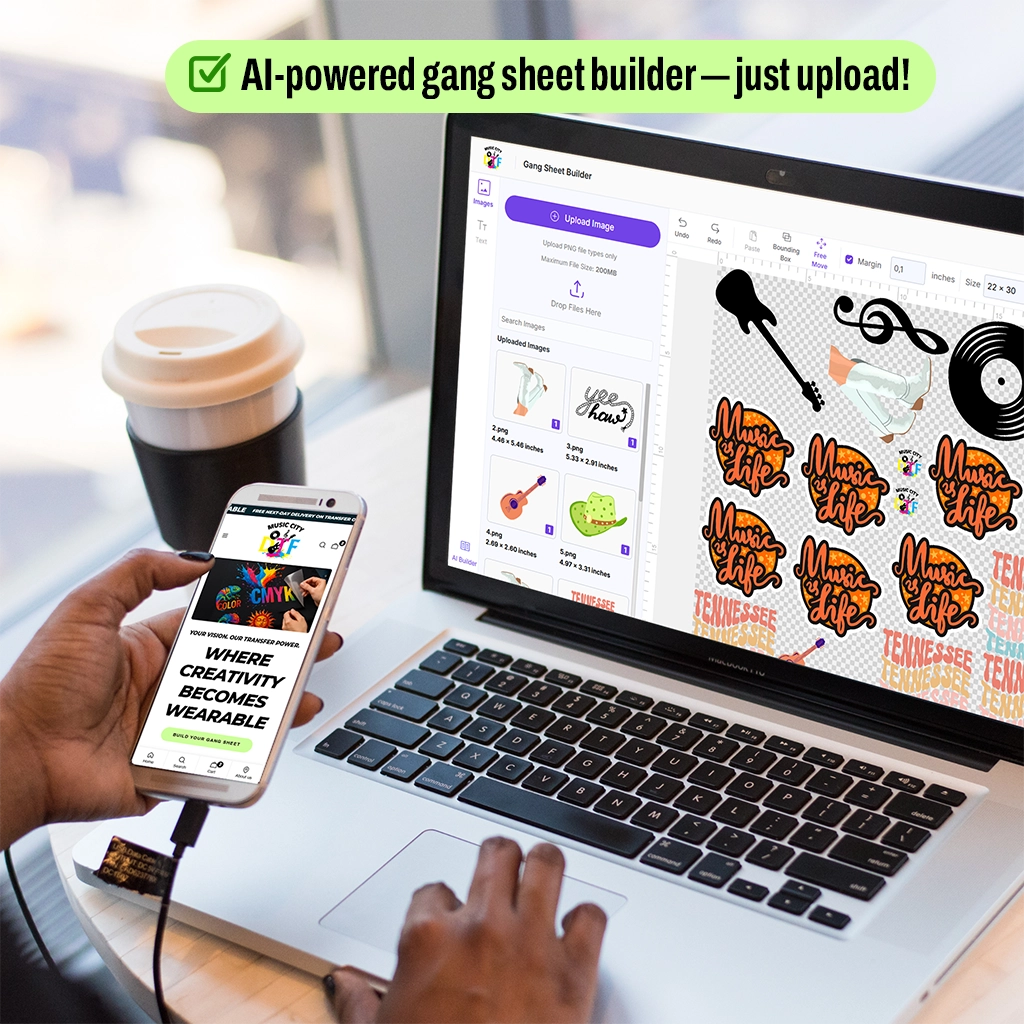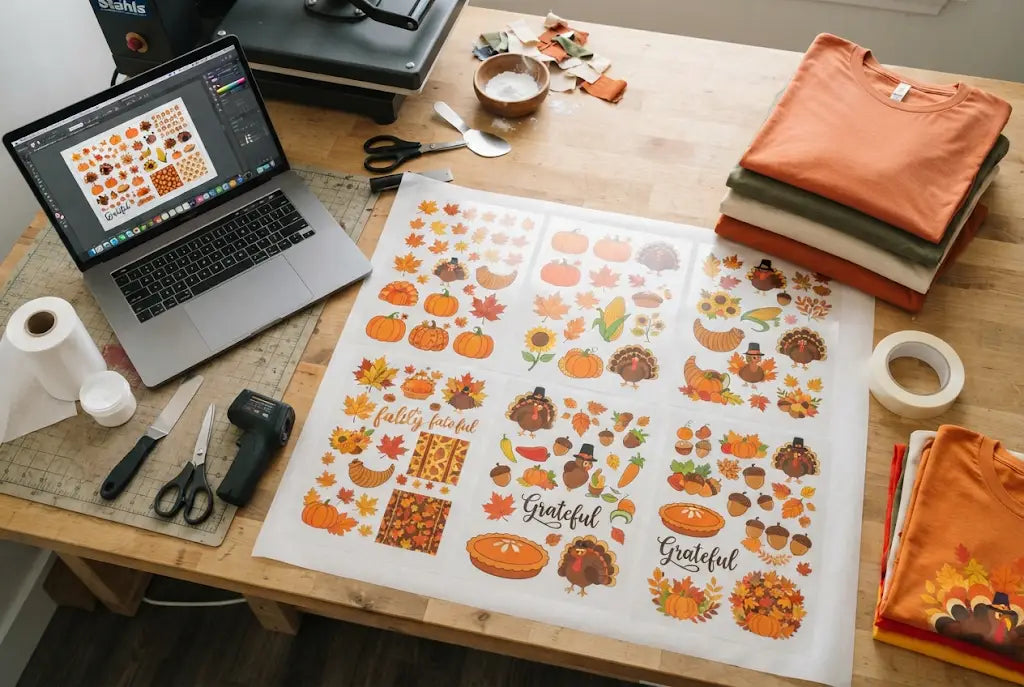
Paying for software just to lay out a gang sheet feels wrong when you are already paying for film, blanks, and shipping. We get it, because most Thanksgiving orders are small to medium batches and every extra cost eats into what you actually make. The good news is you do not need paid software to build a clean sheet that prints well. There are free tools that let you set your sheet size, drop in your designs, and line everything up without the stress.
This list covers nine free builders we actually recommend for Thanksgiving DTF gang sheets, from super simple options for beginners to slightly more advanced ones for people who want more control. Each one works for Thanksgiving shirts and sweatshirts, and each one can help you build a sheet at home without buying anything new. Pick one, stick with it, and you will save time on every order.
9 Free Gang Sheet Builders That Make Thanksgiving Orders Easier
Building a gang sheet is really just arranging your designs on one big page so nothing is wasted. You want your big prints together, your small prints in the gaps, and enough space to cut cleanly. The tools below all let you do that for free, and they all work a little differently. Some are better for quick drag and drop, and some are better if you like to line things up perfectly. We have used each of these for real orders, and we are sharing what works, what does not, and who each one is best for. Try the one that sounds most like you, and do not overthink it, because the best builder is the one you will actually use. You can also visit Music City DTF for your transfer needs.
1. Canva Free Is the Easiest Place to Start
Canva is the one we recommend if you have never built a gang sheet before. You can make a custom size page, drop in your designs, and move them around with your mouse until the sheet looks full. It is visual, it is forgiving, and it does not ask you to learn anything technical. And it is perfect for Thanksgiving DTF transfers for sweatshirts because you can see exactly how big a front print will look next to a small chest logo. The takeaway here is simple, start with Canva if you want speed and simplicity, and you can always move to a more detailed tool later.
- Set a custom page size that matches your sheet
- Upload your designs as PNG files with clear backgrounds
- Keep a little space between each design so cutting stays easy
2. Photopea Works Like Paid Software Without the Price
Photopea looks and feels a lot like Photoshop, but it runs right in your browser and costs nothing. You can open your designs in layers, line them up with guides, and check sizes before you save. It is a great pick if you already know a little about design and you want more control than Canva gives you. We like it for Thanksgiving sweatshirt transfers because you can zoom in close and check edges and text before you print. The takeaway is to use Photopea when you want precision but you do not want to pay for software.
- Use guides to keep rows straight and even
- Work in layers so you can move one design without moving the rest
- Save your finished sheet as a high quality PNG file
3. GIMP Gives You Full Control for Free
GIMP is a free program you download to your computer, and it is powerful once you get used to it. You can set an exact canvas size, add your designs, and move them with a lot of control. It takes a little longer to learn than Canva, but it is worth it if you build sheets often. We use it when we have a lot of mixed sizes on one sheet, because it makes it easy to keep everything lined up. The takeaway is to pick GIMP if you want a free tool that can grow with you as your orders get bigger.
- Set your canvas size first, before you add any designs
- Use the align tool to keep designs in neat rows
- Save a copy of your sheet so you can reuse the layout next time
Thanksgiving Gang Sheets That Actually Fit Your Order
Ready To Build Your Sheet? — Shop DTF Transfers for Thanksgiving →
These are the transfers your customers will actually wear past Thanksgiving. Clean prints, cozy designs, and easy presses that stay soft after washing.
Loved this list? Read this next: How to Press Thanksgiving Sweatshirts Without Ruining Them
4. Inkscape Is Great for Clean Text and Logos
Inkscape is best if your designs have a lot of text, like funny sayings or family names. Text stays sharp in Inkscape, and you can resize it without it getting blurry. That matters for Thanksgiving family sweatshirts, where you might have one main design and a few names underneath it. Inkscape also lets you line things up very neatly, which helps when you have a lot of small designs on one sheet. The takeaway is to use Inkscape when your sheet is mostly text and simple graphics.
- Add your text and graphics as separate pieces so you can move them easily
- Use the grid to keep spacing even across the sheet
- Export as PNG when your layout is ready to print
5. Google Slides Is Surprisingly Good for Quick Sheets
Google Slides is not made for gang sheets, but it works really well for quick ones. You can make a custom slide size, drop in your images, and drag them around until the slide is full. It is free, it saves automatically, and you can share it with a friend or helper to check. We like it for last minute orders, because you can build a sheet in ten minutes without opening anything new. The takeaway is to use Google Slides when you need a sheet fast and you do not want to learn a new tool.
- Change the slide size to match your sheet size
- Drop in your designs and use the arrows to nudge them into place
- Share the link so someone else can double check spelling
6. Figma Free Is Perfect for Lining Things Up
Figma is a free design tool that is great for people who like things neat and organized. You can make a frame the size of your sheet, drop in your designs, and use the auto layout tools to keep spacing even. It is especially good for custom Thanksgiving sweatshirt transfers where you have the same design in a few different sizes. You can copy a design, change the size, and keep everything lined up without guessing. The takeaway is to use Figma if you like clean layouts and you want your sheet to look tidy.
- Make one frame for your full sheet
- Copy and resize designs inside the same frame
- Use the spacing tools to keep gaps even
7. Krita Is a Good Pick for Hand Drawn Looks
Krita is a free drawing program, and it is a great pick if your Thanksgiving designs are hand drawn or have a cozy, sketchy feel. You can draw directly in the program, or you can bring in designs you already made and arrange them on a sheet. It is not the fastest tool for lining things up, but it is lovely for creative designs that do not need to be perfect. We like it for fall leaves, pumpkins, and playful lettering that feels warm and homemade. The takeaway is to use Krita when your designs are more artistic than structured.
- Set your canvas to your sheet size before you start
- Keep your designs on separate layers so you can move them
- Save often, because Krita does not auto save like Google Slides does
8. http://Paint.net Is Simple and Light on Your Computer
http://Paint.net is a free Windows program that is simple, fast, and easy to learn. It does not have a lot of fancy features, but that is actually why we like it. You can open a blank canvas, paste in your designs, and move them around without getting lost in menus. It works well for Thanksgiving apparel orders where you just need a clean sheet and you do not want to spend an hour learning software. The takeaway is to use http://Paint.net if your computer is older or you just want something that opens fast and works.
- Open a new canvas at your sheet size
- Paste designs in one by one and move them into place
- Zoom out often to check for empty space you can fill
9. Adobe Express Free Is Great for Quick Thanksgiving Layouts
Adobe Express has a free plan that lets you make custom size designs and arrange them easily. It has templates, nice fonts, and simple tools that make it easy to build a sheet that looks clean. It is a good pick if you want your sheet to look polished without spending a lot of time on it. We like it for Thanksgiving DTF gang sheets that have a lot of text, because the fonts stay clean and easy to read. The takeaway is to use Adobe Express when you want a sheet that looks good and you want it done quickly.
- Start with a custom size blank project
- Upload your designs and drag them into place
- Download your finished sheet as a high quality file
How to Pick the Right Free Builder for Your Order
Picking a builder is less about which one is best and more about which one fits how you work. If you like things visual and simple, Canva or Adobe Express will feel easy. If you like control and precision, Photopea or GIMP will feel better. If you need something fast for a last minute order, Google Slides is hard to beat. We always tell people to try one builder for two orders before they switch, because switching every time just slows you down. Once you find one you like, save your sheet as a template so you can reuse the layout next year. That template will save you more time than any new tool ever will. And if you are building sheets for sweatshirts, remember that sweatshirt designs are often a little smaller and a little softer in color than tee designs, so leave a little more space around them when you lay them out.
What Music City DTF Recommends for Thanksgiving Sheets
At Music City DTF, we see a lot of sheets that are almost right but have one small issue, like designs that are too close together or text that is a little too small. That is why we always suggest checking your sheet at full size before you send it, and asking a friend to check spelling. A second pair of eyes catches things you miss when you have been staring at the same sheet for an hour. We also suggest building your sheet for the shirts you actually have, not the shirts you wish you had. If you have five medium sweatshirts and three large tees, build for that exact mix. That way, every design on your sheet already has a shirt waiting for it, and nothing goes to waste.
Conclusion
You do not need paid software to build a good gang sheet, you just need a tool you like and a little patience to line things up. The nine builders in this list all work, and they all let you build Thanksgiving DTF gang sheets without spending extra money. Pick the one that feels easiest, build your sheet for the exact shirts you have, and check your spelling and spacing before you print.
That simple habit will save you film, time, and stress during a busy season. And if you want a head start, Music City DTF has ready to press transfers that fit right into the sheets you build with these free tools. Order early, build smart, and enjoy a Thanksgiving season where your custom shirts look as good as your dinner tastes.
Frequently asked Questions
How Do I Build Thanksgiving DTF Gang Sheets Without Paid Software?
You can build them with a free tool like Canva, Photopea, or Google Slides. Make a custom page that matches your sheet size, drop in your designs as PNG files, and leave a little space between each one for cutting. Check your sheet at full size before you save it, and ask a friend to check spelling. This method works well for small and medium orders and saves you from buying software you may only use a few times a year.
What Is the Best Free Builder for Thanksgiving DTF Transfers for Sweatshirts?
Canva is the best free builder if you are new, because it is visual and easy to use. Photopea is better if you want more control and you are comfortable with layers. For sweatshirts, you want a tool that lets you check size and spacing clearly, because sweatshirt prints often sit a little lower and a little smaller than tee prints. Pick one tool, learn it well, and reuse your layout for future orders to save time.
Can I Use Canva to Make Thanksgiving Shirts and Sweatshirts Gang Sheets?
Yes, you can use Canva to make gang sheets for both shirts and sweatshirts. Make a custom size page that matches your sheet, upload your designs, and arrange them with small gaps for cutting. Canva is great for mixing big front prints with small chest logos on the same sheet. Just make sure your designs are high quality PNG files, so they stay sharp when you print them.
How Do I Keep Thanksgiving Sweatshirt Transfers From Looking Blurry?
Start with high quality designs that are clear at the size you want to print. If a design looks blurry on your screen when you zoom in, it will look blurry on the shirt too. Use PNG files with clear backgrounds, and avoid stretching a small image to make it bigger. In your free builder, check each design at full size before you save the sheet, and test one print first if you have time.
Are Free Gang Sheet Builders Good Enough for Thanksgiving Apparel Orders?
Yes, free builders are good enough for most Thanksgiving apparel orders, especially if you are building sheets for your own shop or for a small group. They let you set a sheet size, arrange designs, and save a file to print. Paid software can be faster for very large orders, but free tools work well for most shops. The key is to check your spacing, spelling, and sizing carefully before you print.
How Do I Arrange Custom Thanksgiving Sweatshirt Transfers on One Sheet?
Put your biggest designs first, then fill the gaps with smaller designs like chest logos or sleeve prints. Keep a little space between each design so you can cut cleanly. If you have the same design in different sizes, keep those together so cutting and pressing stay organized. Save your layout as a template, because you can reuse the same arrangement for similar orders next year and save a lot of time.
What Size Should I Make Thanksgiving Family Sweatshirts Designs?
For adult sweatshirts, a front print is often around ten to eleven inches wide, and a chest logo is around three to four inches wide. For youth sizes, the front print is smaller, usually around eight inches wide. Always check the size on a real sweatshirt before you press a full batch, because a design that looks good on a tee can look too big on a sweatshirt. When in doubt, go a little smaller, because it looks more polished.
Can I Build Thanksgiving DTF Gang Sheets in Google Slides?
Yes, you can build gang sheets in Google Slides, and it works well for quick orders. Change the slide size to match your sheet, drop in your designs, and drag them into place. It saves automatically and you can share the link with someone else to check. It is not the most detailed tool, but it is fast, free, and easy to use when you need a sheet in a hurry.
How Do I Order Finished Transfers From Music City DTF?
You can order finished transfers from Music City DTF by choosing your designs, picking your sheet size, and sending your layout. We check your sheet for spacing and sizing before we print, so you do not waste film. Order early in the season if you can, because Thanksgiving is busy and shipping can take longer than usual. We are happy to help you pick the right sheet for your order.
How Early Should I Order Thanksgiving DTF Gang Sheets From Music City DTF?
Order as early as you can, ideally a week or two before you need them. Thanksgiving is one of the busiest times for print shops, and last minute orders can be stressful. Ordering early gives you time to press a test shirt, check sizing, and reorder if needed. Music City DTF can help you plan your sheet so you have enough transfers for every shirt in your order without rushing.